

The rich text editor enables users to create and format content using a wide range of styling options. It includes features like bold, italics, underline, headings, bullet points, and numbered lists. Users can also add links to enrich their content.
This guide explains how to use these tools in Annoto, making it easier to design visually engaging text.
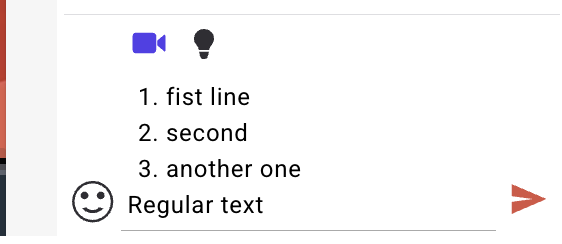
Formatted Numbered List
Steps:
Enter '1.' and press space
Enter some text
Press Shift+Enter
Enter some more text
Press Shift + Enter, two times
Result:
A formatted numbered list should be created
When Shift + Enter pressed twice the formatted list mode should exit back to regular text
Bullet List
Steps:
Enter '*' or '-' and press space
Enter some text
Press Shift+Enter
Enter some more text
Press Shift + Enter, two times
Result:
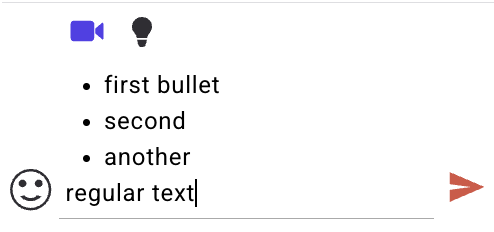
A formatted bullet list should be created
When Shift + Enter pressed twice the formatted list mode should exit back to regular text
Hyperlink
Steps:
Write some text giving the hyperlink a name
Select the URL of choice and copy it
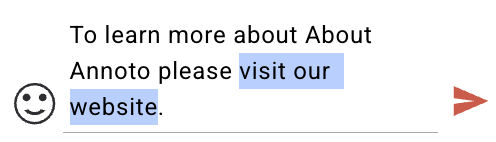
Select the text to be a hyperlink
Press Ctrl + V or Cmd + V (on Mac) to past the URL link
Result:
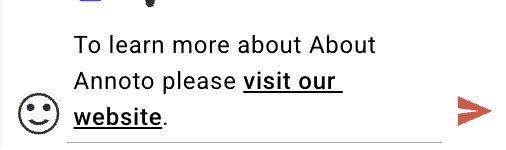
The selected text should become a hyperlink
Other text should remain regular
Emoji
Steps:
type one of the special character combinations and press space
Some examples:
:)
;)
:@
<3
d:
Result:
the characters should be replaces by an emoji

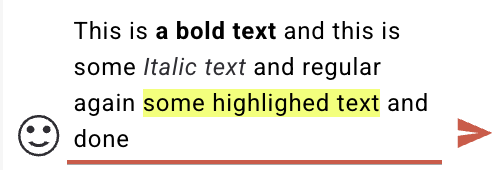
Bold, Italic and highlighted text
Steps:
Enter some text
Enter '**' type text to be bold, and enter a closing '**'
Type some more text
Enter '*' type text to be Italic, and enter a closing '*'
Type some more text
Enter '==' type text to highlight, and enter a closing '=='
Type some more text
Result:
Text that was entered between **some bold text** should be bold
Text that was enterd between *some italic text* should be Italic
Text that was enterd between ==highlighted text== should be highlighted
Other text is regular
Quatted Message
Steps:
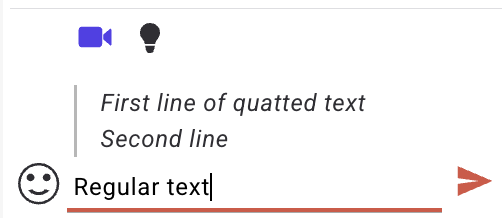
Enter '>' and press space
Enter some text
Press Shift+Enter
Enter some more text
Press Shift + Enter, two times
Result:
A formatted text should be created
When Shift + Enter pressed twice the formatted text mode
History functionlity
Steps:
Enter some formatted text using steps 1-6
Press Ctrl+Z and Ctrl+Shift+Z (Cmd instead of Ctrl for MAC) to travel in history changes
Result:
Undo and redu functionality using the shortcuts should work
Math functionality
Steps:
Enter '$' character
$
Results:
Math editor popup should open
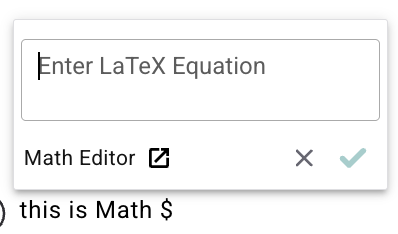
2. Focus should be placed in the editor text area
Copy past LaTeX equation
\sum{\vec{F} } = \vec{0} \Rightarrow \frac{d\vec{v}}{dt} = 0Hit 'Enter' keyboard and click on V button
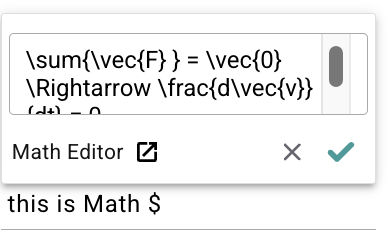
The popup editor should close
Math equation should be rendered
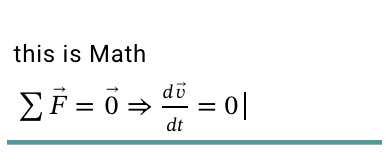
3. Clicking on x button or 'Esc' Keyboard key should close the popup and allow entering regular text for exampl $12
4. The 'V' button should be disabled (until text is entered)